Video Replays: Watch Your Onboard Synced to Your Telemetry
By Aaron Mahesan, Marketing Lead at Track Titan · Updated 17 November 2026
Video Replays record your onboard while you drive and sync it frame for frame to your telemetry, so you can watch your lap side by side with a faster driver’s in Track Titan. Recording is automatic, there’s nothing to set up, and it works in every sim we support on PC.
Key takeaways
- Automatic: your onboard records in the background. No OBS, no record button and no files to manage.
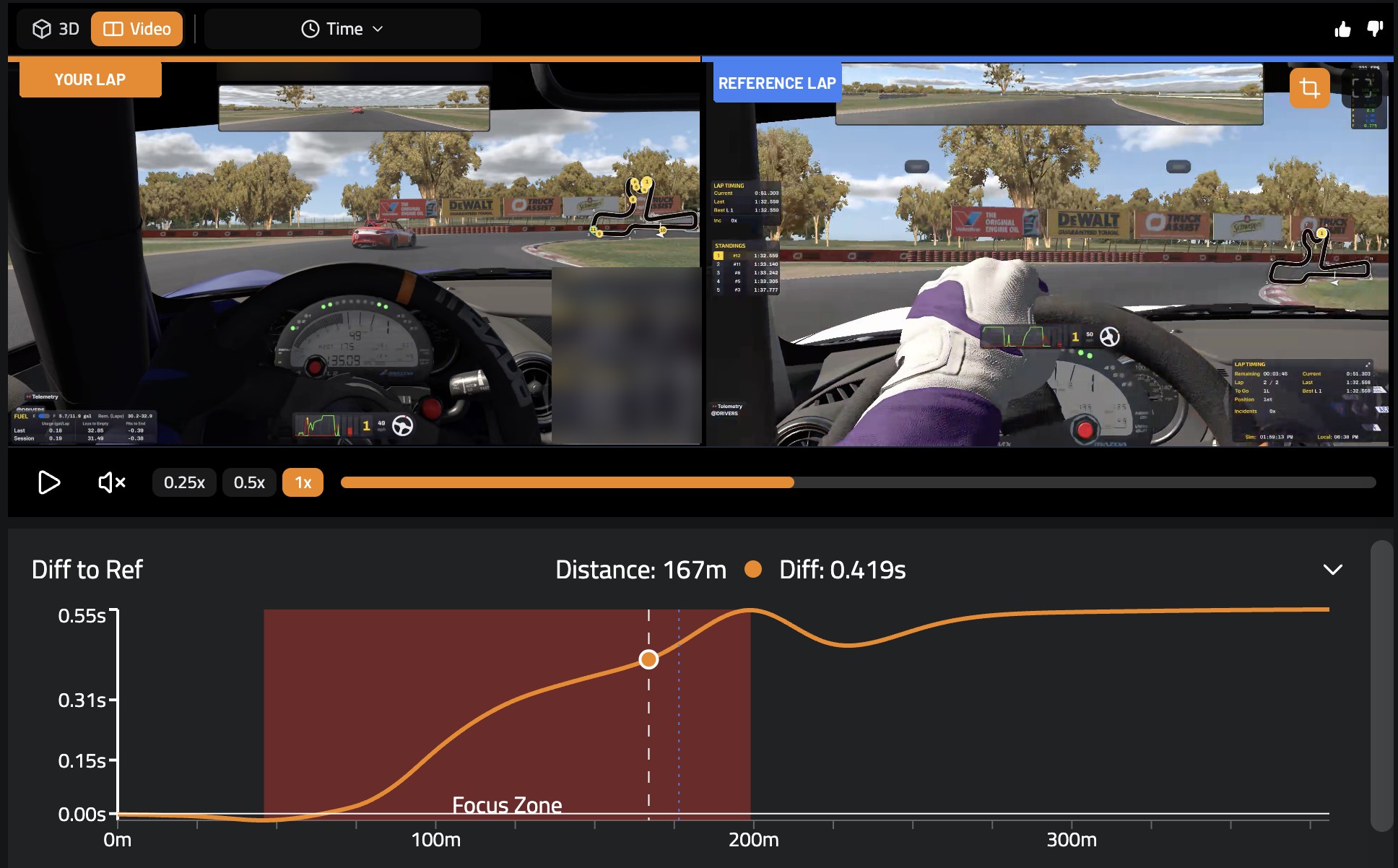
- Side by side: your lap on the left, the reference lap on the right, both synced to your telemetry.
- Two sync modes: distance lines the cars up the same spot on track, and time lets you watch the reference car pull away.
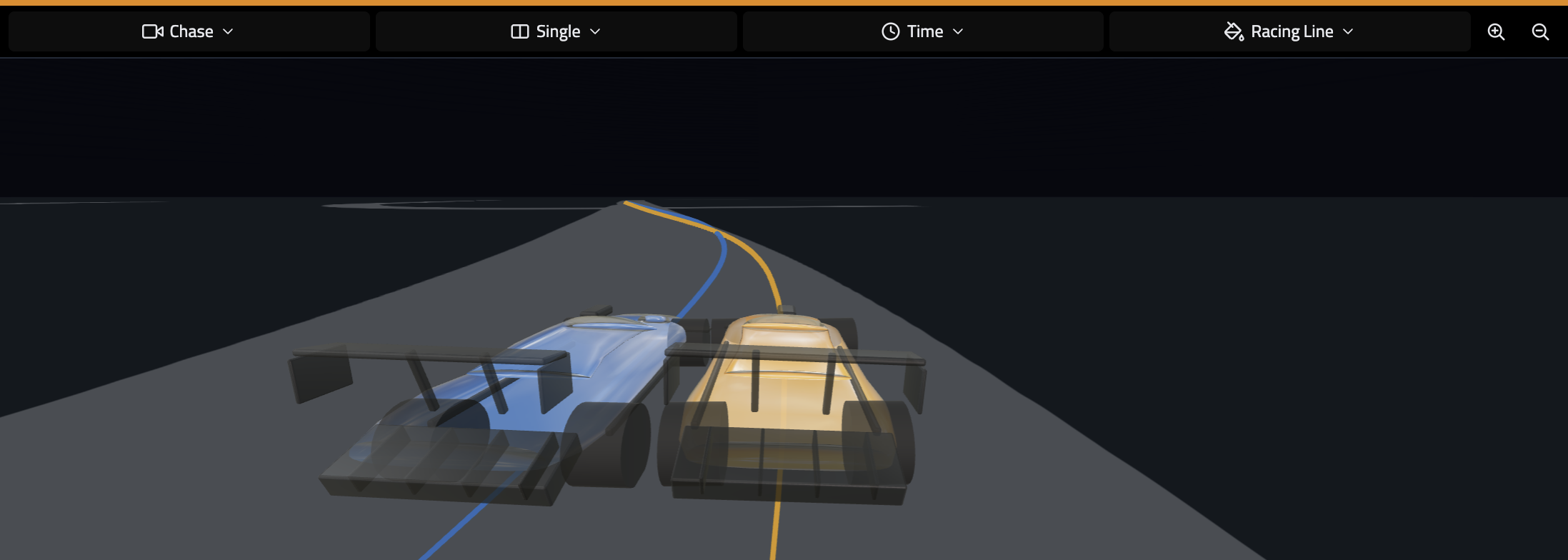
- Works with 3D Replays: switch between real footage and the 3D ghost car in one click.
- Free to start: every Track Titan user can compare against their own laps. Paid members can compare against any Track Titan driver.
What Are Track Titan Video Replays?
Video Replays are onboard videos of your laps that Track Titan records automatically and syncs to your telemetry. Open a session, pick a reference lap with video, and you get both onboards next to each other, moving together as you scrub through the data.
Dual-cam video synced to telemetry has been standard in real-world motorsport analysis for years. Engineers and drivers put two onboards side by side to see exactly where the time goes. We wanted to bring that to simracing without asking you to record, trim and line up clips yourself.
What makes it different is that you don’t have to do anything. Drive, open your session, and the video is already there, synced to the same cursor as the rest of your analysis.
How Do You Use Video Replays?
- Drive a session with Track Titan running. Video capture is on by default. It only records the game window, and you can turn it off in Settings, then Telemetry Settings, then Video Capture.
- Open the session and choose a reference lap. In the reference lap picker in the top-right corner, look for the camera icon: those laps have video. You can also pick “Fastest Lap with Video” in the Suggested tab.
- Pick a segment on the track map. You’ll see your lap on the left and the reference lap on the right, synced to your telemetry.
- Scrub or play. Drag along the telemetry or the video timeline and both onboards stay in sync. Press play for continuous playback, and slow it down to see exactly what happens at the braking point.
- Switch between distance and time. Distance compares the exact same position on track. Time shows you where the reference pulls away.
What Can You Learn From a Faster Driver’s Onboard?
The telemetry trace tells you that you braked 20 metres earlier. The onboard shows you what the faster driver was looking at when they did it. Here’s what to watch for:
- Braking points: the board, marker or kerb they use as their reference, so you can try the same one.
- Lines and kerbs: how much kerb they take on entry and exit, and how much track they use.
- Steering corrections: how much lock they wind on and where they catch the car.
- Track learning: watch a fast lap of a track you haven’t driven yet and use it as a track guide before your first session.
It’s also a great way to review your own driving. Every lap you drive with recording on is a lap you can watch back.
Video Replays vs 3D Replays: Which Should You Use?
Use both. They answer different questions.
- 3D Replays show your reference lap as a ghost car. They strip everything back to line, car placement and inputs, and every lap you’ve ever recorded has one.
- Video Replays show the real thing: the braking markers, track landmarks and what the corner looks like from the cockpit.
If you love the 3D replays but struggle to spot precise braking markers, find the braking point in 3D and switch to video. You’ll see exactly where the reference driver hit the brakes.
Your Latest Onboard on Your Dashboard
Video Replays also feed into the new Track Titan Dashboard. Your last session’s onboard sits on your dashboard, so you can watch it back before you plan your next practice.
Drivers are already using it. Since September, Track Titan drivers have opened more than 33,000 full-lap videos, and more than 5,600 different drivers have watched one. iRacing and Le Mans Ultimate laps are the most watched.
FAQ
Are Video Replays free?
Yes. Every Track Titan user records video and can compare against their own laps. To compare against other Track Titan drivers' laps, you need a paid membership, which comes with a 7-day free trial.
Which sims support Video Replays?
Video Replays work in every sim Track Titan supports on PC, including iRacing, Le Mans Ultimate, ACC, Assetto Corsa, AC EVO, AMS2 and F1.
Do I need OBS or any recording software?
No. Track Titan records the game window automatically while you drive, then syncs the video to your telemetry.
Will recording slow down my sim?
The impact is negligible. In our testing, CPU usage was close to 0%, and the GPU peaked at 0.5% core usage and 162MB of VRAM.
Why don't all reference laps have video?
We can only show video for laps recorded since Video Replays launched, with video capture on. The more laps drivers record, the more reference videos there are. If there's no video for your combination yet, switch to the 3D Replay instead.
Can I turn video recording off?
Yes. Go to Settings, then Telemetry Settings, and switch off Video Capture. You can turn it back on at any time.
This Is Just the Start
Video synced to your telemetry is one of the things that sets Track Titan apart. You can see what other simracers are doing and how they do it: their braking points, their lines and their steering corrections. Use it to find your time, or as a track guide before you drive. It feeds straight into your dashboard too, and this is only the beginning, so keep an eye out for more.
Jump in, record a few sessions, and see your laps on video.
Sign up free and record your first session →
All the best from London,
Aaron and the Track Titan team
About the author

Aaron Mahesan, Marketing Lead at Track Titan. A simracer since 2003, his goal is to help drivers find the setups, data and coaching needed to get faster.